In the competitive digital landscape, bringing design ideas to life quickly and interactively is paramount. Many teams face challenges with rushed design timelines, communication breakdowns, and inefficient iteration processes, making traditional design methods cumbersome. This comprehensive guide will dive deep into Figma prototyping, demonstrating how this powerful feature can revolutionize your interactive design workflows and elevate your projects from concept to final product. Discover how to leverage Figma’s robust capabilities to create dynamic user flows, seamlessly link wireframes, foster real-time collaboration, and conduct effective user testing, ultimately making your design process more efficient, impactful, and user-centered.
Understanding Figma as a Design Foundation
Figma provides a robust foundation for all design stages, from initial concepts to polished deliverables. Its core interface is intuitive, allowing designers to easily navigate between project files, pages within a file, and individual frames on the canvas. Understanding this hierarchy is crucial for organizing your work. One of Figma’s most significant advantages is its unparalleled collaborative nature, enabling real-time multi-user editing and shared design spaces directly in the browser. This means multiple team members can work on the same file simultaneously, seeing each other’s cursors and changes live. To begin, set up your first project file by creating a new design file and establishing clear naming conventions for your pages and frames. This practice is essential for maintaining organization and ensuring scalability as your design projects grow, making it an excellent platform for ui/ux design and figma for web and mobile design projects.
The Power of Figma as a Wireframe Tool
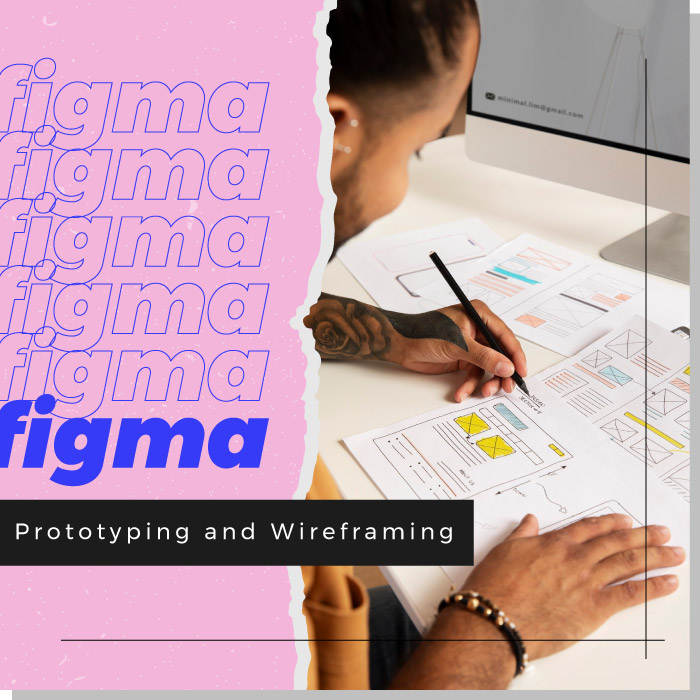
As a leading figma wireframe tool, Figma excels at structuring low-fidelity layouts quickly and effectively. You can rapidly sketch out initial user interfaces by using basic shapes, grayscale palettes, and placeholder text, focusing purely on functionality and information hierarchy without getting bogged down by aesthetics. The efficiency of figma wireframing is further enhanced by its robust component and variant features. These allow you to create reusable UI elements, such as buttons, navigation bars, and cards, which can be easily updated across your entire design. This component-based approach lays the foundation for a scalable design system, ensuring consistency from the earliest stages. You can rapidly create basic figma wireframes by leveraging Figma’s intuitive drawing tools and auto-layout features, which help maintain structure and spacing, ensuring consistency and speeding up the initial design phase.
Bringing Designs to Life: Mastering Figma Prototyping Fundamentals
Core Prototyping Features in Figma
Figma’s prototyping capabilities are built around three essential components that define interactive experiences. First, triggers specify when an interaction happens, such as ‘On Click,’ ‘While Hovering,’ or ‘After Delay.’ Second, actions define what happens in response to a trigger, including ‘Navigate To’ a different screen, ‘Open Overlay’ for pop-ups, or ‘Scroll To’ a specific section. Third, animations determine how the action transitions, with options like ‘Instant’ for no transition, ‘Dissolve’ for a fade, ‘Smart Animate’ for complex object transformations, or ‘Move In/Out’ and ‘Push’ for directional screen transitions. Beyond individual interactions, Figma allows you to define and manage ‘Flows.’ These are designated entry points for different user journeys within your design, enabling you to create multiple distinct figma prototypes from a single file, each focusing on a specific user path or scenario.
Building Your First Interactive Flow
Building your first interactive flow in Figma is a straightforward process. Begin by selecting a frame or an interactive element within your design. Then, navigate to the Prototype tab in the right-hand sidebar. From an interactive element, you will see a small blue connection node; simply drag this node to its destination frame. This creates a basic connection. Once connected, you can explore basic animations and transitions to bring your static figma prototype to life. For instance, use ‘Move In’ or ‘Push’ to simulate page transitions, giving the impression of a user moving through an application. ‘Dissolve’ is excellent for smoother content changes, like revealing a new section. While learning, it’s crucial to avoid common prototyping mistakes such as overly complex flows, which can confuse users, missing connections, which break the prototype, or inconsistent interactions, which lead to a disjointed experience. For those looking to create wireframes with Figma effectively, especially as a product manager, understanding these foundational steps is crucial for transitioning into prototyping in figma efficiently. Mastering these fundamentals is key to effective prototyping with figma.
Advanced Techniques for Dynamic Figma Prototypes and Collaboration
Crafting Complex User Journeys
To elevate your interactive designs, explore advanced prototyping features in Figma. Smart Animate is a powerful tool that allows you to create sophisticated micro-interactions and fluid transitions between screens by intelligently interpolating layers with similar names. This feature can generate impressive effects, from subtle button states to complex scroll-triggered or gesture-based animations that add a highly polished feel to your figma prototypes. Furthermore, you can implement interactive components directly within your design system. These are self-contained interactive elements, such as toggles, carousels, and dropdowns, that retain their interactivity across multiple screens, significantly speeding up complex prototyping. Figma’s advanced prototyping capabilities now also include conditional logic and variables, enabling you to create more realistic and dynamic user experiences that can respond to user input and display dynamic data, simulating more complex application behaviors.
Streamlining Team Workflows for Figma Prototypers
Figma is built for collaborative design, making it ideal for teams of figma prototypers. Leverage Figma’s robust sharing and commenting features to facilitate effective feedback loops with stakeholders. Use ‘present mode’ to conduct clear demonstrations of your interactive prototypes, allowing viewers to navigate through the experience as intended. Contextual comments can be placed directly on specific design elements or frames, enabling precise revisions and ensuring all feedback is tied to its relevant part of the design. Mastering version history is also critical; it allows you to track all changes, compare iterations side-by-side, and restore previous versions of your figma prototypes with ease, ensuring no design work is ever lost. Finally, optimize the developer handoff process by utilizing Inspect mode, which provides CSS snippets and design specifications for all elements, and seamlessly exporting assets directly from Figma, ensuring efficient and accurate implementation of your interactive designs.
Validating Your Design: Figma for Prototyping and User Testing
Setting Up User Tests with Figma Prototypes
Preparing your figma prototypes meticulously is crucial for effective user testing across various scenarios. Start by defining clear user tasks and establishing specific success metrics that will help you measure the effectiveness of your design. Figma’s versatile sharing capabilities are invaluable for this stage. You can generate view-only links for external stakeholders, allowing them to review the prototype without editing access. Integrate with FigJam for collaborative feedback sessions, where team members and users can interact directly with the prototype in a whiteboard environment. Additionally, share direct links for both remote and in-person user feedback sessions, ensuring your prototype is accessible to all participants. Outline a comprehensive plan for conducting both moderated tests, where you guide users, and unmoderated tests, allowing users to interact independently, to gather diverse insights into usability.
Gathering Feedback and Iterating Effectively
After conducting user tests, the next step is to analyze user behavior effectively. Focus on key metrics such as time on task, which indicates efficiency; clicks to completion, showing the journey length; error rates, identifying problematic areas; and areas of user confusion, revealing usability issues. Figma’s commenting tools are perfect for gathering and organizing feedback directly on the prototype itself, making it easy to address specific design elements and ensure all comments are contextualized. The speed and flexibility of Figma allow for rapid iteration cycles based on test results. You can quickly modify your figma prototypes to address identified pain points, test the revised solutions, and validate improvements. This iterative approach is fundamental for figma for prototyping and user testing, ensuring your design evolves to meet user needs and expectations.
Conclusion
Figma stands as an indispensable tool, empowering designers and teams to seamlessly transition from initial wireframes to high-fidelity, interactive prototypes. Its collaborative environment fosters effective teamwork, while its robust prototyping and testing features enable thorough validation, ultimately delivering superior user experiences. Embracing figma prototyping is key to streamlining your design workflow and achieving impactful digital products. Don’t let your design ideas remain static. Leverage the full power of Figma to bring your concepts to life, test them rigorously, and collaborate effortlessly. Unlock the full potential of your designs – start prototyping in Figma now and transform your interactive design process!